How to load logs with the crane in Timber Haul
To load logs in Timber Haul, park, reach the pile, wait for Ready to grip, grip, Lift clear, Turn logs, Reach load bunk and release. Let the logs settle before the next grab. The forwarder and the timber truck use the same crane buttons, so once you know them, you can load both.
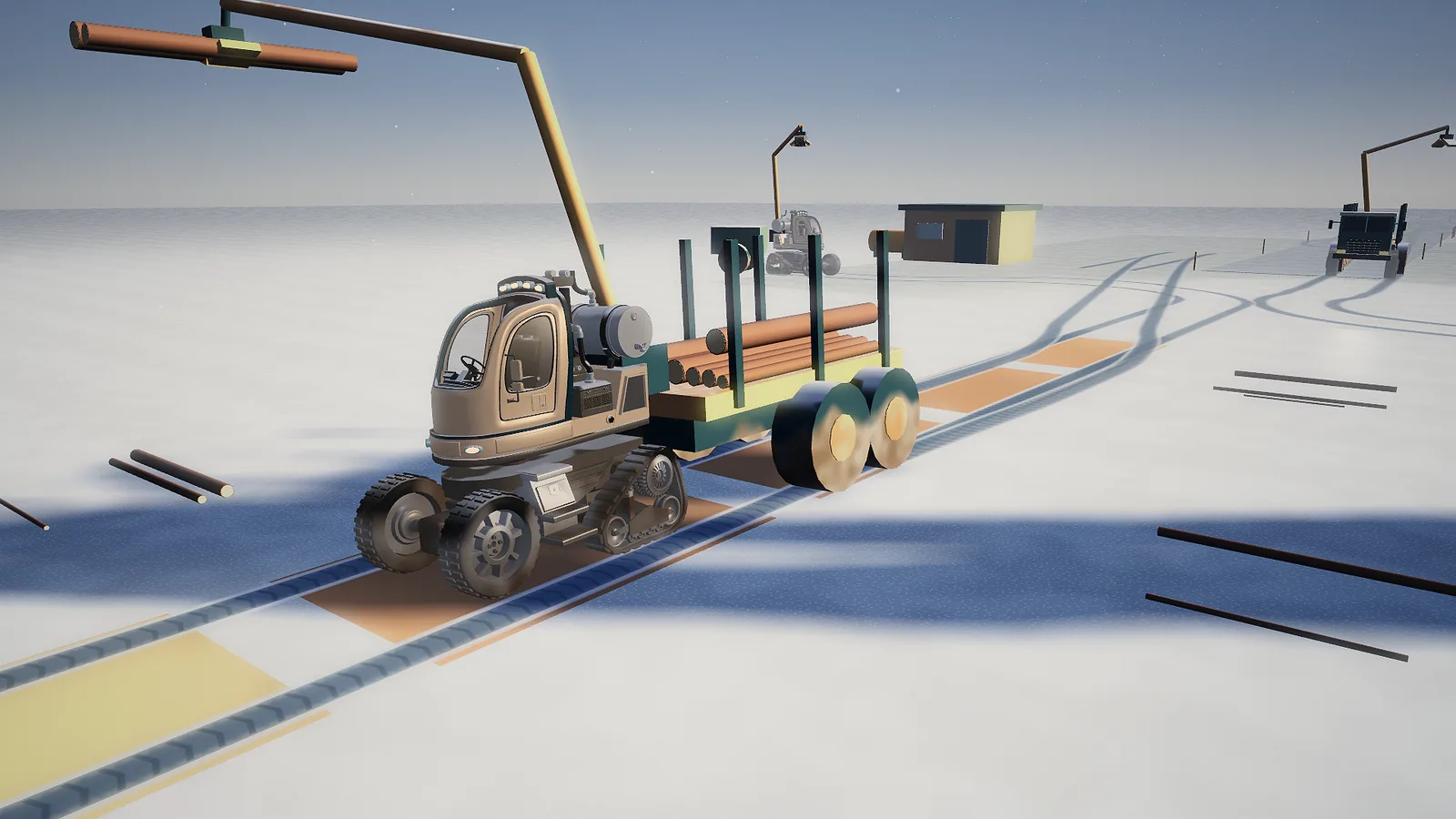
The loading loop
| Step | Button (key) | What happens |
|---|---|---|
| 1. Reach the pile | Forest pile or Roadside pile (1) | The crane swings the grapple to the nearest pile you can use. |
| 2. Line up | Turn logs (3) | The grapple turns to lie along the logs. Wait for "Ready to grip". |
| 3. Grip | Grip logs (Space) | The grapple closes on the top logs. You see "Timber held · lift clear". |
| 4. Lift clear | Lift clear (2) | The logs rise high, so they do not drag through trees or stakes. |
| 5. Turn | Turn logs (3) | The logs turn to lie along your load bed. |
| 6. Reach the load bed | Reach load bunk (4) | The crane moves the logs over your load bed. |
| 7. Release | Release logs (B) | The logs drop onto the load. Let them settle. |
Then go back to step 1. The step buttons on screen are grouped as Pick up, Load up and Set down, and the group you are on is highlighted.
What the grapple picks up
The grapple takes logs from the top row of a pile. It takes as many as fit, and only one kind of timber in each grab. The standard grapple holds 0.9 m³ and the Bigger grapple 1.5 m³. Your forwarder gets the bigger grapple when you finish cutting in Pine Heath. The truck's grapple can be upgraded at the workshop.
Where the crane reaches
The pile buttons choose a pile for you:
- Forest pile (forwarder) reaches the nearest forest pile. It prefers timber that the mill you picked on the map will take, and sawlogs first.
- Roadside pile (truck) reaches the nearest roadside pile with timber that your chosen mill takes. So pick your mill on Map & machines before you load.
- Machine load reaches into your own load bed. Use it at the landing or the mill to take logs back out.
- Unload pile reaches the right place to set logs down: the matching roadside pile for the forwarder, or the mill deck after the truck has been weighed.
You can also click or tap the snow next to a pile to send the crane there.
Unloading the forwarder at the landing
The Roadside landing is next to the roadside workshop. It has three piles with signs: SAWLOGS, PULPWOOD and ENERGY WOOD.
- Drive to the forwarder's stop, on the outside of the piles, and park.
- Choose Machine load to reach your load bed, and grip.
- Choose Lift clear, then Turn logs.
- Choose Unload pile. The crane picks the pile that matches the logs you hold.
- Release, and let them settle.
The To the road bar on the job card counts every new log that reaches a roadside pile.
Loading the truck and trailer
The timber truck has two load beds: one on the truck and one on the trailer. The Trailer bunk button switches the crane between them. Load the truck bed first, then switch and load the trailer.
Keep an eye on the numbers while you load. Gross weight is the truck, trailer and timber together. Axle loads shows the heaviest axle out of 10 t. Too much on the truck's own bed makes its axles too heavy. Read mills, weighing and pay for the limits.
Neat stacks and messy stacks
A load is tidy when every log lies along the load bed. Logs dropped across the bed make a messy stack. A messy stack also holds less: only about two thirds of a neat load. And it costs you the Tidy loads medal for that chapter (see the three forests).
- Always choose Turn logs before Reach load bunk.
- Lower the logs close to the bed before you release.
- Let each grab settle before you add the next.
Dropped logs
Sometimes a log rolls off the load or the pile onto the snow. The Next stop box then shows Dropped timber. Then:
- Wait until it stops rolling. The Reach dropped logs button appears in step 1 and works once the log lies still.
- Choose Reach dropped logs (5). The crane turns and reaches for the nearest dropped log.
- Grip it and put it back on your load or a pile.
If the log is out of reach, drive a little closer first.
Bumps and the balance of the machine
The crane can touch trees, stakes, the cab or the ground. Then you see "You touched something. Reverse or lift the boom." Hard bumps lower the machine's condition. Long reaches with heavy logs can also make the machine unsteady: bring the load closer to the machine and lift clear before you swing.
Moving the crane by hand
The step buttons move the crane for you. To move each part yourself, use J / L (swing), I / K (reach in or out), U / O (raise or lower the boom), N / M (turn the grapple) and Y / H (shorten or extend the telescope). On a controller use the sticks and the D-pad. On touch, open Fine controls. All of them are on the controls page.
Crane problems and fixes
| Message | What to do |
|---|---|
| "Turn the grapple to line up" | Choose Turn logs, then grip. |
| "No timber here yet. Cut some trees first." | There is nothing to pick up here. Cut more trees, or try another pile. |
| "Let the timber settle, then reach for it." | A dropped log is still rolling. Wait a moment. |
| Logs will not go onto the load bed | It may be full. Drive to the landing or the mill and unload. |
| The crane cannot reach the pile | Drive closer, then park again. |
| "Set the grapple load down before changing machines." | Release the logs before you switch machine. |
See also
- Crane practice: learn the crane with twelve logs and no clock.
- The three machines: how much each load bed holds.
- Tips for new forest workers: quick habits for neat loads.
- Play Timber Haul and load your first forwarder.


