Make Unplayable Videos Work Everywhere — HEVC to H.264
Fix videos that won't play on older devices, TVs, and editors
Batch convert HEVC/H.265 videos to universally compatible H.264/MP4. Fix codec-missing errors on Windows, Android, and legacy hardware.
Download Free TrialWhy Convert HEVC to H.264?
Many older devices, TVs, and video editors can't play HEVC/H.265 files. H.264 is universally supported.
VideoRecompress batch converts HEVC to H.264 with GPU acceleration, preserving quality while ensuring playback everywhere.
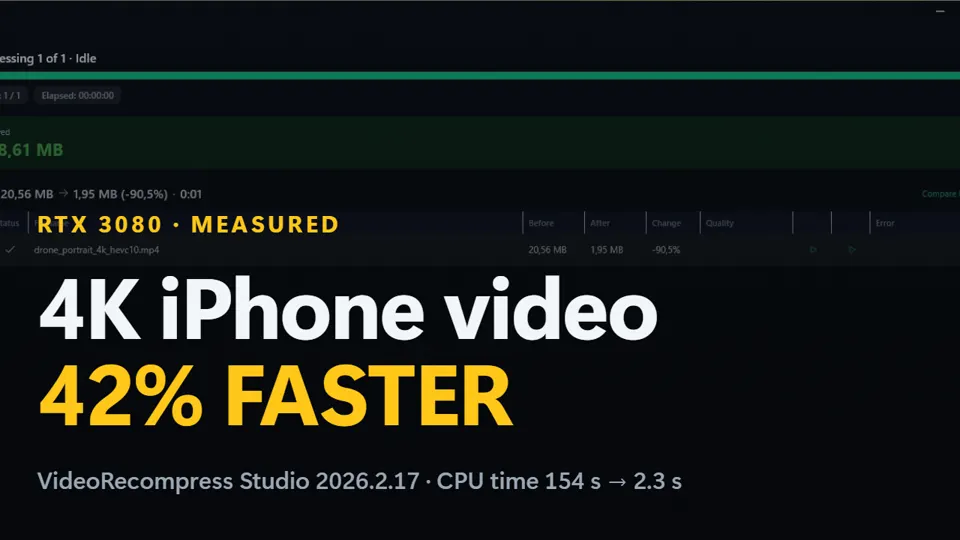
Watch: a 4K iPhone clip to 1080p H.264 on an NVIDIA card, 20.56 MB down to 1.95 MB
- Jump to
Windows · free trial · pay once, no subscription
Recorded on one PC with an NVIDIA RTX 3080. Without an NVIDIA card the conversion still works; the processor decodes and resizes instead.
HEVC to H.264 Features
H.264 plays on every device, TV, browser, and video editor.
CRF-based encoding preserves visual quality during conversion.
Convert entire folders of HEVC files in one batch run.
How to Convert HEVC to H.264
Add HEVC/H.265 videos
Drop your HEVC files from iPhone, camera, or any source.
Select H.264 output
Choose the Quick H.264 Repack preset for universal compatibility.
Convert and replace
GPU-accelerated batch conversion. Original files untouched.
Published by ContentaSoft, Umea, Sweden — developer of VideoRecompress Studio.
VideoRecompress Studio is a desktop application for Windows that batch compresses and re-encodes videos using modern codecs (H.265, AV1, VP9) with hardware acceleration.
This software contains no adware, spyware, toolbars, or bundled third-party programs. The installer installs only VideoRecompress Studio and FFmpeg (open-source video engine).
All videos are processed locally on your computer. No files are uploaded to any server. The software does not collect personal data.
30-day free trial: your first 10 files convert with no watermark; after that files get a watermark and a 10-minute cap. Buying removes both. Lifetime license: $79 (one-time payment, no subscription).
Download size: ~2 MB (web installer). Additional components including FFmpeg are downloaded during installation.
How to Uninstall
Open Windows Settings > Apps > Installed apps, find "VideoRecompress Studio" in the list, and click Uninstall. You can also run the uninstaller from the installation folder or use Control Panel > Programs and Features.