Make Unplayable Videos Work Everywhere — HEVC to H.264
Fix videos that won't play on older devices, TVs, and editors
Batch convert HEVC/H.265 videos to universally compatible H.264/MP4. Fix codec-missing errors on Windows, Android, and legacy hardware.
Download Free TrialWhy Convert HEVC to H.264?
Many older devices, TVs, and video editors can't play HEVC/H.265 files. H.264 is universally supported.
VideoRecompress batch converts HEVC to H.264 with GPU acceleration, preserving quality while ensuring playback everywhere.
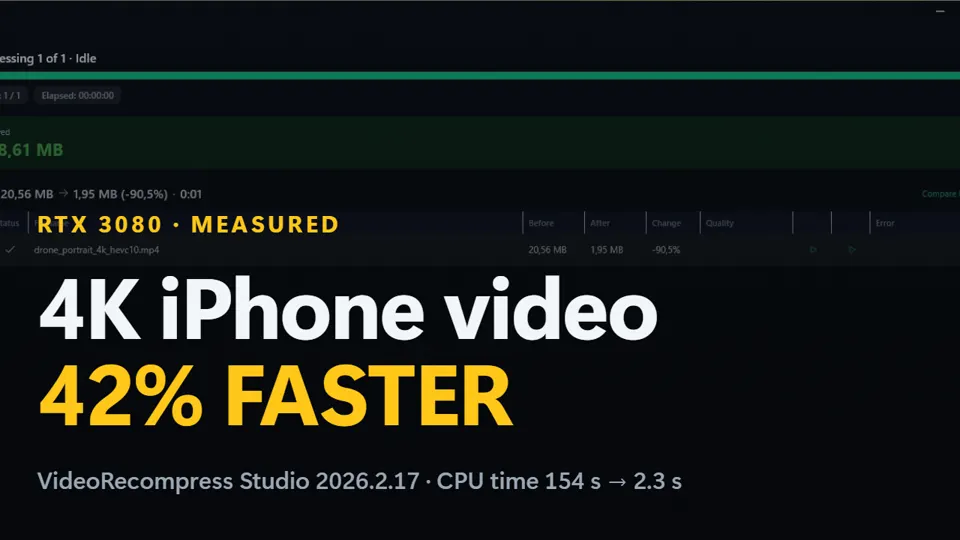
Watch: a 4K iPhone clip to 1080p H.264 on an NVIDIA card, 20.56 MB down to 1.95 MB
- Jump to
Windows · free trial · pay once, no subscription
Recorded on one PC with an NVIDIA RTX 3080. Without an NVIDIA card the conversion still works; the processor decodes and resizes instead.
HEVC to H.264 Features
H.264 plays on every device, TV, browser, and video editor.
CRF-based encoding preserves visual quality during conversion.
Convert entire folders of HEVC files in one batch run.
How to Convert HEVC to H.264
Add HEVC/H.265 videos
Drop your HEVC files from iPhone, camera, or any source.
Select H.264 output
Choose the Quick H.264 Repack preset for universal compatibility.
Convert and replace
GPU-accelerated batch conversion. Original files untouched.
Published by ContentaSoft, Umea, Sweden — developer of VideoRecompress Studio.
VideoRecompress Studio is a desktop application for Windows that batch compresses and re-encodes videos using modern codecs (H.265, AV1, VP9) with hardware acceleration.
This software contains no adware, spyware, toolbars, or bundled third-party programs. The installer installs only VideoRecompress Studio and FFmpeg (open-source video engine).
All videos are processed locally on your computer. No files are uploaded to any server. The software does not collect personal data.
Free trial with no time limit: your first 10 files convert with no watermark; after that files get a watermark and a 10-minute cap. Buying removes both. Lifetime license: $79 (one-time payment, no subscription).
Download size: ~2 MB (web installer). Additional components including FFmpeg are downloaded during installation.
How to Uninstall
Open Windows Settings > Apps > Installed apps, find "VideoRecompress Studio" in the list, and click Uninstall. You can also run the uninstaller from the installation folder or use Control Panel > Programs and Features.