AI Slow Motion Video Creator
Reach a smooth 30 or 60 fps from any source for fluid slow motion with RIFE AI
AI frame interpolation adds new frames between the existing ones: 24 or 30 fps footage reaches 60 fps and slows down in your editor without stutter.
Download Free TrialFree trial: your first 5 files within 30 days at full resolution, no watermark. Then a watermark and a 720p cap until you buy. No credit card needed.
From the makers of Contenta Converter, used by 100,000+ people. · ✓ 30-day money-back guarantee · ✓ $129 one-time purchase. No subscription. Free updates.
How to make any video 60 fps with AI frame interpolation (RIFE)
- Jump to
Windows · free trial · pay once, no subscription
AI Slow Motion Features
AI generates intermediate frames for smooth slow motion from any source frame rate.
Reach a smooth 30 or 60 fps from any source: 24 or 30fps footage plays back at 60fps.
Apply slow motion to entire collections. GPU-accelerated via Vulkan.
Common Frame-Rate Conversions
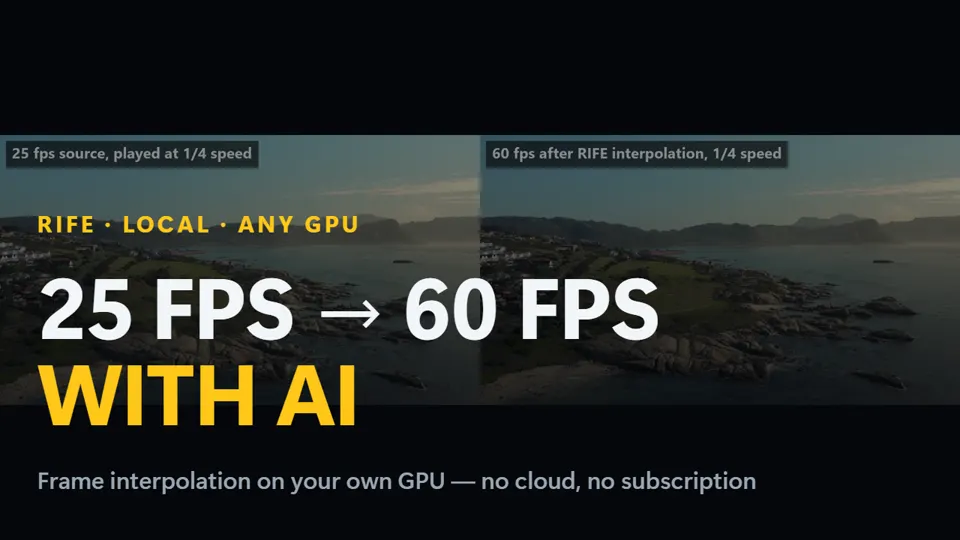
Pick a target of 30 or 60 fps and RIFE reaches it from any source — 24, 25 or 30fps footage all become a smooth 60fps. RIFE fills in the new in-between frames, so fast motion plays back smooth instead of stuttering. Slow it down in your editor afterwards for true slow-motion, or keep the higher frame rate for smoother playback.
Runs on Your Own GPU
Frame interpolation runs on your own NVIDIA, AMD or Intel GPU via Vulkan, with no per-minute fees.
How It Works
Add Your Videos
Load your video clips — any format, any frame rate.
Pick a Preset or Customize
Enable frame interpolation and choose a target of 30 or 60 fps.
Enhance
AI generates smooth intermediate frames. Export in H.265 or ProRes.
Slow Motion FAQ
How does AI slow motion work?
RIFE analyses two neighbouring frames and generates brand-new intermediate frames between them to reach your chosen target of 30 or 60 fps, so motion looks smooth when slowed down instead of choppy.
Do I need a special high-fps camera?
No. That is the point of frame interpolation: it creates the extra frames a high-fps camera would have captured. Pick a target of 30 or 60 fps and RIFE reaches it from any source, so a 24 or 30fps clip becomes smooth 60fps footage.
Where are my videos processed?
On your own PC: RIFE runs on your graphics card. The software sends anonymous install, crash and usage statistics and license checks, as described in the Privacy Policy.
Can I process a whole folder at once?
Yes. Add a batch of clips and the app processes them one after another, GPU-accelerated via Vulkan, and exports in H.265, ProRes and more. It is a one-time $129 purchase with no subscription.
Smooth Slow Motion — $129 One-Time
Create slow motion from any video. No subscription, batch included.
Free trial: your first 5 files within 30 days at full resolution, no watermark. Then a watermark and a 720p cap until you buy. No credit card needed.
Published by ContentaSoft, Umea, Sweden — developer of AI Video Enhancer Studio.
AI Video Enhancer Studio is a desktop application for Windows that upscales video with NVIDIA RTX Video Super Resolution, interpolates frames with RIFE, and denoises, stabilizes and deinterlaces with FFmpeg filters. Encoding is GPU-accelerated.
This software contains no adware, spyware, toolbars, or bundled third-party programs. The installer installs only AI Video Enhancer Studio.
Videos are processed on your own PC, on its processor and graphics card. The software sends anonymous install, crash and usage statistics and license checks, as described in the Privacy Policy.
Free trial: your first 5 files within 30 days at full resolution without a watermark. After that, output is watermarked and capped at 720p until you enter a license key. Lifetime license: $129 (one-time payment, no subscription).
How to UninstallOpen Windows Settings > Apps > Installed apps, find "AI Video Enhancer Studio" in the list, and click Uninstall. You can also run the uninstaller from the installation folder or use Control Panel > Programs and Features.
Download size: ~2 MB (web installer). Additional components including AI models are downloaded during installation.