Format Guide
STEP File Format (.stp, .step)
The universal engineering exchange format — exact geometry, assembly structure, and metadata in one file.
Download Free TrialFree 30-day trial. No credit card required. Windows 10/11.
30-day money-back guarantee · one-time license — See pricing
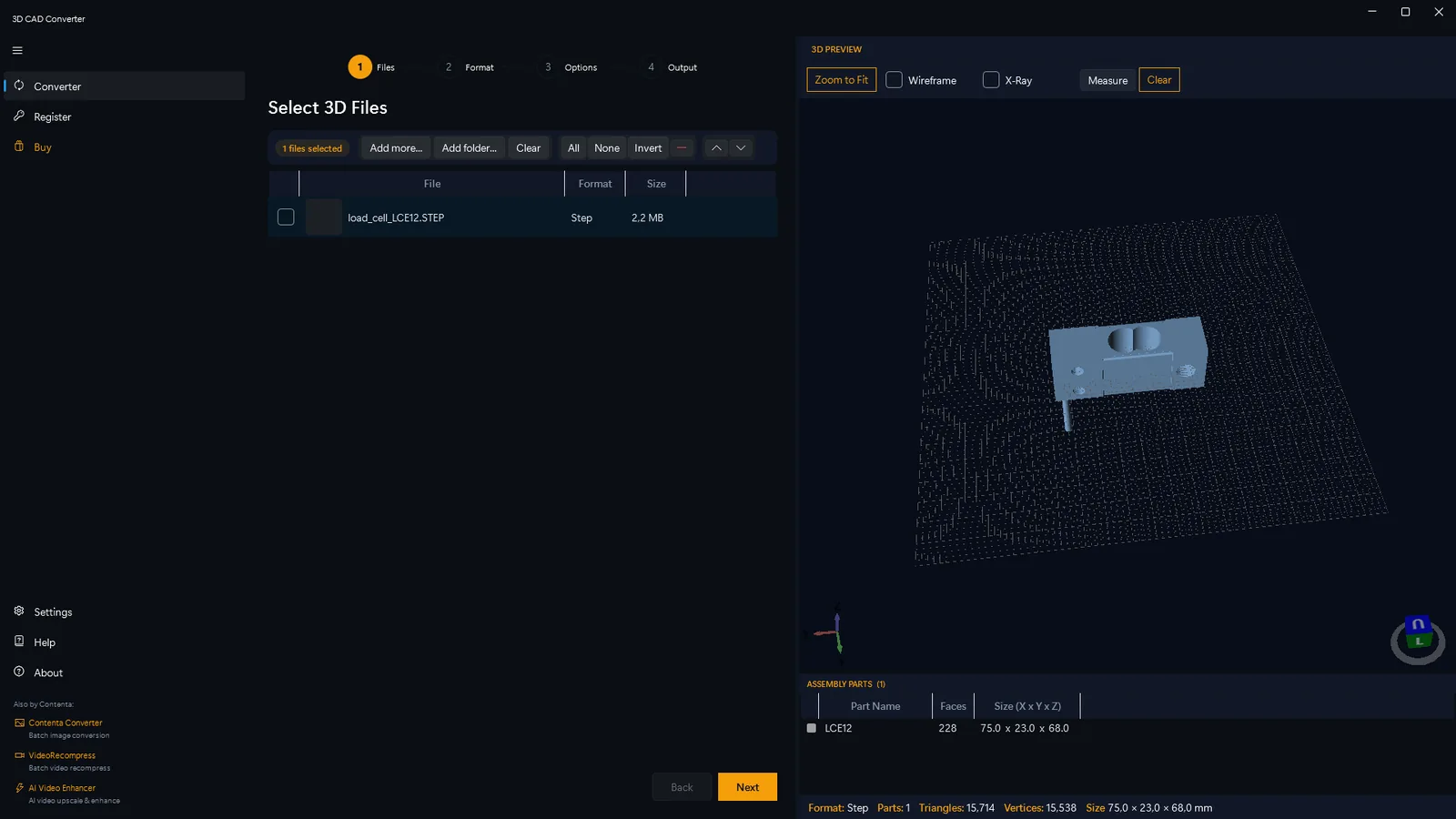
STEP assemblies open directly in the 3D preview — inspect parts, faces and dimensions before converting.
| Extension | .stp, .step |
|---|---|
| Full name | Standard for the Exchange of Product Data |
| Standard | ISO 10303 |
| Geometry type | Solid / NURBS (exact boundary representation) |
| Variants | AP203, AP214, AP242 |
| Open standard | Yes |
| Supports color | AP214, AP242 only |
| Supports assemblies | Yes |
What is a STEP file?
STEP (Standard for the Exchange of Product Data) is an ISO 10303 international standard for 3D model data exchange. It stores exact boundary-representation geometry (NURBS surfaces, edges, faces) rather than a mesh approximation — meaning curved surfaces stay mathematically perfect rather than being faceted. STEP is the most widely used neutral format for transferring 3D models between different CAD systems. Three AP (Application Protocol) variants are in common use: AP203 (geometry and topology only), AP214 (adds color and layer data), and AP242 (the modern successor, with composite materials and PMI annotations).
Common Uses of STEP Files
Transfer fully-featured 3D models between SolidWorks, CATIA, Siemens NX, Creo, and other CAD platforms without losing solid geometry or feature topology.
Send parts to suppliers, manufacturers, and CNC shops. STEP is the lingua franca of mechanical engineering — virtually every CAM system can read it.
As an open ISO standard, STEP files are ideal for archiving product data for decades — not dependent on any vendor's proprietary format remaining readable.
Software Support
SolidWorks, CATIA, Siemens NX, PTC Creo, Autodesk Fusion 360, AutoCAD, FreeCAD, Rhino, and virtually all professional CAD systems.
Convert This Format
Commonly converted to STL or 3MF for 3D printing, to OBJ for rendering, to glTF/GLB for web and AR, or to IGES for legacy CAD compatibility.
How to Convert STEP to STL, OBJ or glTF
Most downstream tools — slicers, render engines, game engines, web viewers — can't read STEP solids directly. Converting a STEP file to a mesh format takes three steps in 3D CAD Converter.
Load your STEP file
Drag your .step or .stp file into 3D CAD Converter, or point the CLI at a whole folder. STEP assemblies, colors and units are read automatically.
Pick a target format & quality
Choose STL for 3D printing, OBJ for rendering, or glTF/GLB for web and AR. Set a tessellation preset or a deflection value to control how finely curved surfaces are meshed.
Convert (single or batch)
Convert one part or an entire library in one pass. Output keeps the original geometry's scale and structure as faithfully as the target format allows.
Prefer the command line? The same conversions run headlessly with the cadconvert CLI:
cadconvert convert -i part.step -o part.stl
Convert STEP to OBJ (rendering)
cadconvert convert -i part.step -o part.obj
Convert STEP to glTF / GLB (web & AR)
cadconvert convert -i part.step -o part.glb
Batch-convert a folder with a fine deflection
cadconvert batch -i ./in -o ./out -f stl --deflection 0.01
Batch-convert to OBJ at the fine tessellation preset
cadconvert batch -i ./in -o ./out -f obj --tessellation fine
A lower --deflection value (e.g. 0.01 mm) or the fine/ultra tessellation preset produces smoother curves and a larger file; a higher value gives a smaller, coarser mesh.
STEP vs Other 3D Formats
STEP stores exact solid geometry (NURBS / BREP), so it is the best choice for engineering exchange and CAD-to-CAD transfer. Mesh formats like STL, OBJ and glTF instead store a triangle approximation of the surface — perfect for printing, rendering or the web, but they discard the parametric solid and editable history.
Compared with IGES, STEP is the modern successor: it preserves topology, assemblies and (in AP214/AP242) color and PMI, while IGES is surface-only and often loses structure. Choose STEP for accuracy and longevity; convert to a mesh only when the destination tool needs one.
Compare STEP with the formats it is most often converted to: IGES, STL, OBJ. Read: STEP vs IGES — which format should you use? · Read: How to convert STEP to STL
Common STEP File Problems
Some viewers can't read STEP solids at all, and a few corrupt files fail because of a bad header or truncated download. Open the file in a dedicated CAD tool or convert it to STL/OBJ first — 3D CAD Converter reads both AP203 and AP214/AP242 STEP files.
Plain AP203 STEP files carry no color information, so models can appear grey. Color and materials only exist in AP214 and AP242 files — and only mesh targets like OBJ, glTF and 3MF can carry that color downstream.
Large assemblies and very fine tessellation produce big meshes. Raise the deflection value or use a coarser tessellation preset to shrink output; for web and AR, glTF/GLB compresses geometry far better than STL or OBJ.
If color, PMI or assembly data goes missing on import, the file is probably an older AP203 export. Re-export from the source CAD as AP214 or AP242 to retain the richer metadata before converting.
STEP File — Frequently Asked Questions
What is a .stp file?
A .stp file (also written .step) is a STEP file — the ISO 10303 Standard for the Exchange of Product Data. It stores exact 3D solid geometry (NURBS / BREP), assembly structure and metadata, and is the universal neutral format for moving CAD models between systems. The .stp and .step extensions are identical.
How do I open a STEP file?
Open a STEP file in any CAD program (SolidWorks, Fusion 360, FreeCAD, Rhino) or a free STEP viewer. To use the model in a slicer, renderer, game engine or browser, convert it to STL, OBJ or glTF first. 3D CAD Converter opens .step and .stp directly and exports to 15+ formats.
Is STEP better than IGES?
For most modern workflows, yes. STEP preserves solid geometry, topology, assemblies and — in AP214/AP242 — color and PMI, while IGES is an older surface-based standard that often loses topology and assembly structure. Use STEP unless a legacy system specifically requires IGES.
Can I convert STEP to STL for free?
Yes. 3D CAD Converter offers a free trial that converts STEP to STL, OBJ, glTF, 3MF and more — including whole batch folders — with full control over tessellation quality. Download it and run cadconvert convert -i part.step -o part.stl, or use the desktop app.
Does converting STEP to a mesh lose precision?
Converting a STEP solid (exact NURBS/BREP) to a mesh like STL or OBJ approximates curved surfaces with flat triangles, so some precision is lost. You control how much with the deflection / tessellation setting. The STEP file itself stays exact — keep it as your master copy.