STEP to STL, measured
STEP to STL (.stp) for 3D printing without faceted curves
A STEP file stores exact curves; an STL stores flat triangles. One setting decides how many triangles stand in for each curve, and it is the difference between a smooth print and a faceted one. Here is the same part converted four ways.

Flat facets on every fillet

Faint bands on fillets

Smooth fillets
Pick for printing

3.5x the file of Fine, same look
Real output, not a mock-up. housing_grove_scd41.stp (70 KB, 54 faces, exported from Creo Parametric) converted to STL by 3D CAD Converter 1.0.22 at each preset, then rendered from the STL without smoothing. The numbers are linear / angular deflection as set in the app. Each conversion took under 1.3 s on a Ryzen 9 3900X.
Which STEP to STL setting for your printer
| You print on | Pick | Why |
|---|---|---|
| FDM, 0.4 mm nozzle | Fine | A 0.01 mm deviation is 20x smaller than a 0.2 mm layer, so fillets print round. |
| Resin (SLA, MSLA) | Fine | Resin shows flats that FDM layers hide. Use Ultra Fine only if a small part still shows them. |
| Quick fit check | Standard | The file was 12x smaller than Fine here (86 KB vs 1.0 MB); faint bands do not matter for a test. |
| Print service upload | Fine | The service prints the mesh it receives; send the smooth one. |
STEP to STL converter: four steps, one file or a folder
- Add the STEP filesDrop .stp or .step files, or a whole folder with its subfolders.
- Pick STL as outputBinary STL, the smaller of the two STL variants.
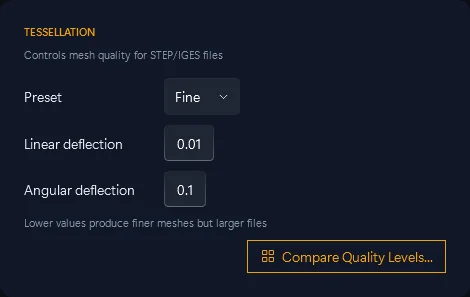
- Set the preset to FineOr type the deviation yourself. Compare Quality Levels shows the presets side by side.
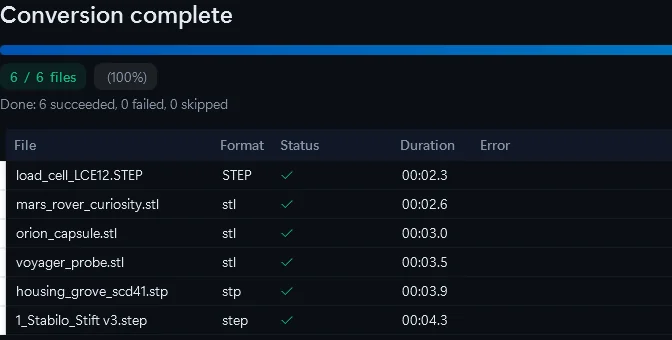
- Convert the batchEvery file gets the same settings; the list shows the time per file.
cadconvert convert -i part.stp -o part.stl --tessellation 0.01 --angular 0.1
cadconvert batch -i .\step -o .\stl -f stl
The same from the command line. batch uses the Standard preset; for Fine, call convert per file or run the folder in the app.
STEP to STL problems and the fix
Flat spots on curves
The preset was too coarse. Convert again at Fine; the STEP still holds the exact curve.
Slicer says non-manifold
Tick Repair geometry and convert again. It sews small gaps between the STEP surfaces before meshing. How repair works
Part prints 25.4x too small
STL has no units and slicers assume mm, so an STL written in inches prints 25.4x too small. Convert it again with Convert units set from inch to mm.
File too big to upload
Go one preset down: Standard was 12x smaller than Fine on the part above.
Online STEP to STL converter or desktop app
| What matters | 3D CAD Converter | Free online converters |
|---|---|---|
| Files per run | A whole folder | Usually one |
| Your CAD file | Stays on your PC | Uploaded to a server |
| Smoothness control | 4 presets or exact deviation | Often none |
| Price | 10 free conversions, then a one-time license | Free |
For one small part, a free online tool or FreeCAD does the job. The desktop app pays off on a folder, or on files you may not upload.
Convert your own STEP files at FineFree trial: 10 conversions, no credit card. Windows 10/11, 64-bit.
Download Free TrialSTEP to STL: questions
Is there a free STEP to STL converter?
Yes. FreeCAD opens a STEP file and exports STL, one file at a time. The 3D CAD Converter trial gives you 10 conversions, batch included.
Can I convert STEP to STL online?
Yes, for small files you are allowed to upload. Online tools usually take one file at a time and offer no smoothness setting.
Which setting is best for 3D printing?
Fine, for FDM and resin. Standard left bands on fillets; Ultra Fine made the file 3.5x bigger with no visible gain.
Can I turn the STL back into a STEP?
No. An STL holds only triangles; the exact surfaces are gone. Keep the STEP as the master and export again when the design changes.
Does it open SolidWorks or Inventor files?
No. Export STEP from the CAD program first, then convert the STEP. Batch export guides: SolidWorks · Inventor
What does the conversion leave behind?
Exact curves, the assembly tree, colors and units stay in the STEP. The STL keeps the shape, which is all a slicer needs.
Related: Tessellation settings in depth · Repair non-manifold output · What a STEP file is · STEP file won't open