AI Frame Interpolation: Turn Choppy Video into Smooth 60fps
Video shot at 24 or 25 frames per second looks cinematic on a theater screen, but on a modern 60Hz or 120Hz monitor it can look choppy and stuttery. Old camcorder footage, anime, classic films, and surveillance recordings all suffer from this low-frame-rate problem.
AI Video Enhancer Studio uses RIFE frame interpolation to draw the missing frames between the real ones. It works as a 60 fps converter for one clip or a whole folder: pick 30 or 60 fps and it adds exactly the frames needed.
What Is Frame Interpolation?
Frame interpolation generates brand-new intermediate frames between the existing ones. You pick the target frame rate — 30 or 60 fps — and RIFE synthesizes exactly enough frames to reach it, whatever the source rate. So 24fps and 30fps both become a smooth 60fps, with the AI predicting what the scene looked like between each pair of real frames.
One sixth of a second: 4 source frames become 10 output frames. Only every fifth output frame falls on a source frame; RIFE draws the other four.
Frame duplication repeats frames and still looks choppy; blending two frames creates ghosting. RIFE analyzes the motion and draws new in-between frames instead.
How RIFE Works
RIFE (Real-Time Intermediate Flow Estimation) is a neural network for frame interpolation. It compares two consecutive frames, estimates how each pixel moves between them (optical flow) and draws a new frame at any point in between.
- Any Vulkan GPU: RIFE runs on NVIDIA, AMD and Intel graphics cards. Unlike upscaling, it does not need an RTX card.
- Motion-aware: it estimates how each pixel moves, so a new frame follows the motion instead of blending two frames into a ghost.
- 30 or 60 fps targets: pick the output frame rate you want and the app reaches it from any source — turning 24 or 30fps into a smooth 60fps, never above 60.
Use Cases
Turn 24fps film into a smooth 60fps (or a gentler 30fps) for fluid playback on modern displays. Ideal for old home movies, documentaries, and archival footage.
Interpolate a 24 fps clip to 60 fps, then slow it back to 24 fps in your editor: 2.5× slow motion without stutter, no high-speed camera needed.
Most anime is drawn at 12 to 24 frames per second. RIFE smooths pans and camera moves; check fast action scenes, where drawn frames can warp.
Smooth out 30fps gameplay captures for YouTube or Twitch highlights that look better on high-refresh-rate monitors.
Low-frame-rate security footage (around 15fps) becomes much easier to review when raised to a smooth 30 or 60 fps.
Frame Rate Targets
Pick the output frame rate, 30 or 60 fps, and RIFE adds exactly the in-between frames needed to get there from any source. Choose by where the video will be watched:
| Source FPS | To 30 fps | To 60 fps | Best For |
|---|---|---|---|
| 24 fps | 30 fps | 60 fps | Cinematic film, home movies, documentaries |
| 25 fps | 30 fps | 60 fps | PAL / European broadcast footage |
| 30 fps | — | 60 fps | Phone footage, game recordings, smooth 60/120Hz playback |
| 15 fps | 30 fps | 60 fps | Surveillance, old webcam and screen recordings |
How to Use Frame Interpolation
- Open AI Video Enhancer Studio and click Add Videos or Add Folder.
- Click Next to go to the Configure step.
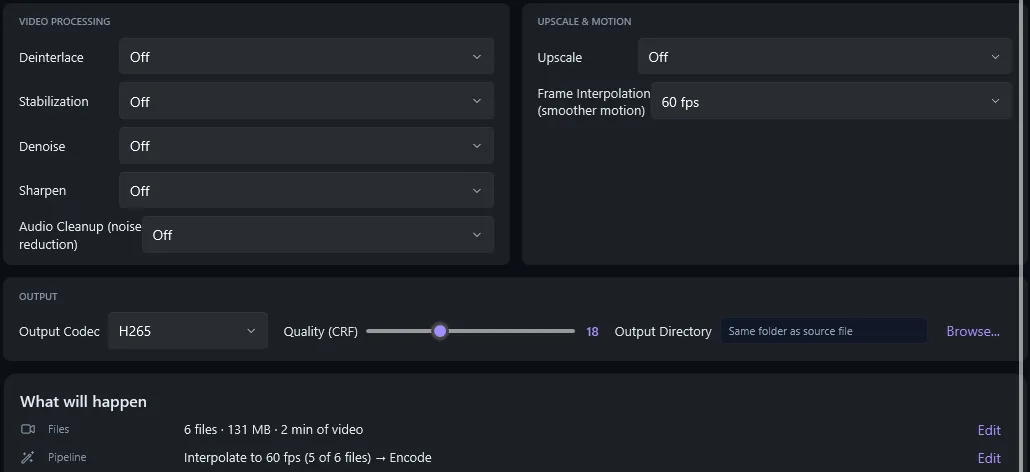
- Set Frame Interpolation (smoother motion) to 30 fps or 60 fps.
- Optional: on an NVIDIA RTX card, set Upscale to 2× as well; both run in the same pass.
- Click Start Enhancement. Each video gets a new file at the frame rate you picked.
Batch Processing
Add a folder, set the target frame rate once, and every file in it is processed in turn.
On an RTX card you can upscale to 4K and interpolate to 60 fps in the same run.
Frame Interpolation FAQ
What frame rates can RIFE convert to?
30 or 60 fps. RIFE adds the frames needed from any source rate (24, 25 or 30 fps) and never goes above 60. A clip already at or above the target is left as it is.
Where does frame interpolation run?
On the graphics card in your PC, through Vulkan. There are no per-minute fees.
Do I need an NVIDIA GPU for frame interpolation?
No. RIFE runs through Vulkan on NVIDIA, AMD and Intel cards. Only upscaling needs an NVIDIA RTX card.
Can I interpolate a whole folder at once?
Yes. Add a folder, pick 30 or 60 fps, and every clip in it is processed in one run.
Smooth out your videos
Try it free on 5 files at full resolution. Turn 24 or 30 fps footage into smooth 60 fps, $129 once, no subscription.
Download Free Trial