Tape Restoration preset: make captured VHS, Hi8 and MiniDV watchable on any PC
Your tapes are already files, but they play with comb lines on every movement, colored speckle in the shadows, a torn band along the bottom, a stretched picture and a hum under the voices. The Tape Restoration preset fixes these in one pass and gives you smooth video in the correct 4:3 shape. It uses the processor only, so it works on any PC: no graphics card is needed.
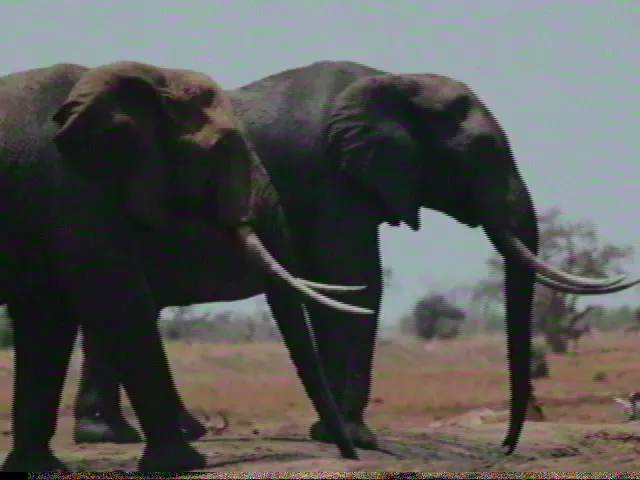 Before
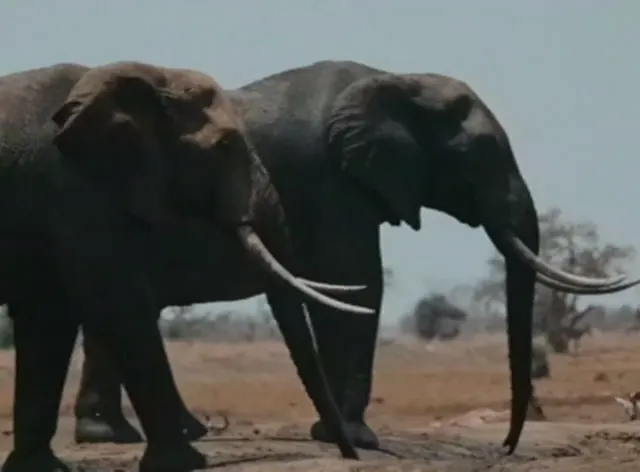 After
AfterWhat the preset does, in order
- Crops the noise band, if you ask. VHS, Video8 and Hi8 leave a band of noise at the bottom of the picture where the heads switch. Tick the option and it is cut off.
- Checks each file. It detects whether the file is interlaced and which field comes first. A progressive file is not deinterlaced.
- Deinterlaces to full motion. PAL 25i becomes 50p and NTSC 29.97i becomes 59.94p.
- Reduces color noise. Color (chroma) noise is reduced more strongly than brightness detail.
- Sets the shape and the levels. The picture is converted to square pixels at the correct 4:3 shape, and video levels are kept within the legal range.
- Cleans the sound. Mains hum is removed (50 Hz in PAL countries, 60 Hz in NTSC countries, plus the next four harmonics) and hiss is lightly reduced.
The output is H.264 at high quality.
Why it does not use AI upscaling by default
None of these faults is a lack of pixels. Comb lines, color noise, the wrong shape and hum are fixed with ordinary video and audio filters, so no AI stage runs by default and no graphics card is needed. AI upscaling on faces from tape can also look artificial. On a PC with an NVIDIA RTX card you can add AI upscaling on top as an option and judge the result on your own footage.
What we measured
| Test file | Output |
|---|---|
| 720×576, 25i (PAL) | 768×576, 50p |
| 720×480, 29.97i (NTSC) | 720×540, 59.94p |
| 640×480, 29.97i | 640×480, 59.94p |
| 720×576 DV, progressive | 768×576, 25p (left progressive) |
Deinterlacing
We compared the four deinterlacers in the app's engine against true progressive reference frames on three clips. The one the preset uses (bwdif) scored 0.5 to 1.6 dB better than yadif and up to 6.4 dB better than the weakest. A wrong field order costs about 13 dB, so it is measured for each file instead of assumed.
Color noise
Chroma PSNR improved by 5 to 8 dB on the test clips while luma structure (SSIM) was unchanged. The app's Strong general denoise lowered luma SSIM in a fast scene from 0.837 to 0.795, which is why the tape preset does not use it.
Hum
On the test clips the hum tone and its harmonics fell by more than 60 dB. When the hum was 0.7% off its nominal frequency, the filters alone gave about 31 dB. Take 31 dB as the realistic figure.
Speed
Processor only, on a 12-core desktop (Ryzen 9 3900X): 145 to 200 frames per second on interlaced tape files, about 3 to 4 times faster than real time, and about 7 times real time for a progressive DV file. An hour of tape is roughly 15 to 20 minutes on that machine. We did not measure other PCs.
File size
Three of the four interlaced test files came out much smaller: a 72 MB DV clip became 6.5 MB. One MPEG-2 file that was already compressed came out larger, from 10.2 MB to 15.0 MB, because the output has twice the frames at high quality.
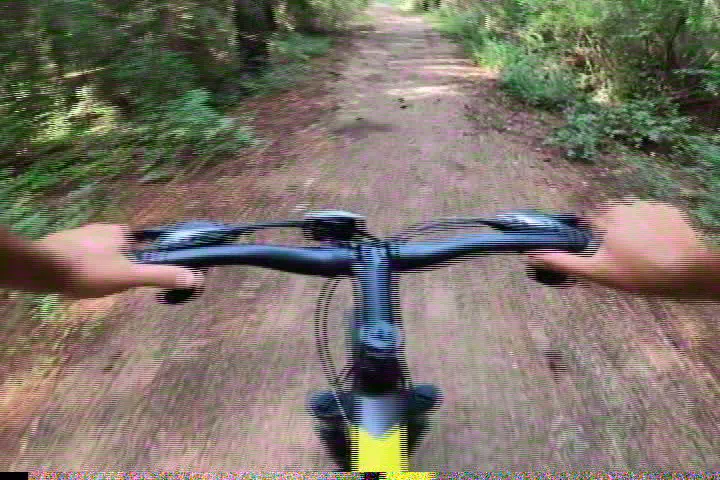 Before
 After
AfterIn the app, on the command line, or through an AI agent
In the app, pick Tape Restoration. It is the first preset in the list and carries the mark Works on any PC. The option that crops the bottom band is on the Configure step.
# One file
aivideoenhancer enhance tape01.avi --output .\restored --preset tape_restoration

# A folder of VHS captures: crop the bottom band and remove 50 Hz hum
aivideoenhancer enhance .\captures --output .\restored --preset tape_restoration --crop-bottom --hum 50

# Also save a 30-second before/after clip of each video
aivideoenhancer enhance .\captures --output .\restored --preset tape_restoration --compare --compare-seconds 30
--hum accepts off, auto, 50 or 60. With auto the frequency follows the file: 50 Hz for PAL, 60 Hz for NTSC. --crop-bottom works only with this preset, and --compare-seconds sets the length of the --compare video.
AI agents. The MCP server takes the same options as parameters: preset, crop_bottom, hum, compare and compare_seconds.
Watch folders. A watch folder in the app can use the preset, the crop option and the before/after clip. The CLI has no watch command.
A before/after clip to show a customer
Tick Also save a 30-second before/after clip of each video on the Output card or in the Watch Folder. Each restored video then gets a second file ending in _compare, with the original on the left and the result on the right. A digitization shop can send it with the order so the customer sees what was done.
Limits
Test footage, not real tapes. We measured on clean video with simulated tape damage (color noise, a head-switching band, hum, hiss) plus one real DV file, because we had no real captured tapes to measure. Results on real tapes will vary.
Capture faults stay. Software cannot fix what went wrong at capture: picture wobble and jitter (time-base errors), dropped frames, or a capture device that already deinterlaced badly.
No color correction. The preset limits levels to the legal range. It does not correct a lifted black level or a color cast.
Not the last word in deinterlacing. bwdif was the best of the four deinterlacers we measured in the app's engine. Slower, more elaborate methods exist and the preset does not use them.
Try the preset on one of your own captures
Free trial, no time limit. No account or credit card required.
Download Free TrialRelated: VHS tape restoration · DVD and VHS to 1080p: deinterlace first · Automate AI Video Enhancement with CLI, MCP & Agents