DVD and VHS to 1080p: deinterlace, denoise, then upscale
Short answer: DVD video and VHS captures are interlaced. Remove the interlacing first (Deinterlace: Yadif), take the tape noise down (Denoise: Light), and only then upscale 2× with NVIDIA RTX Video Super Resolution. Upscale first and the comb lines get sharpened along with the picture.
The order that works
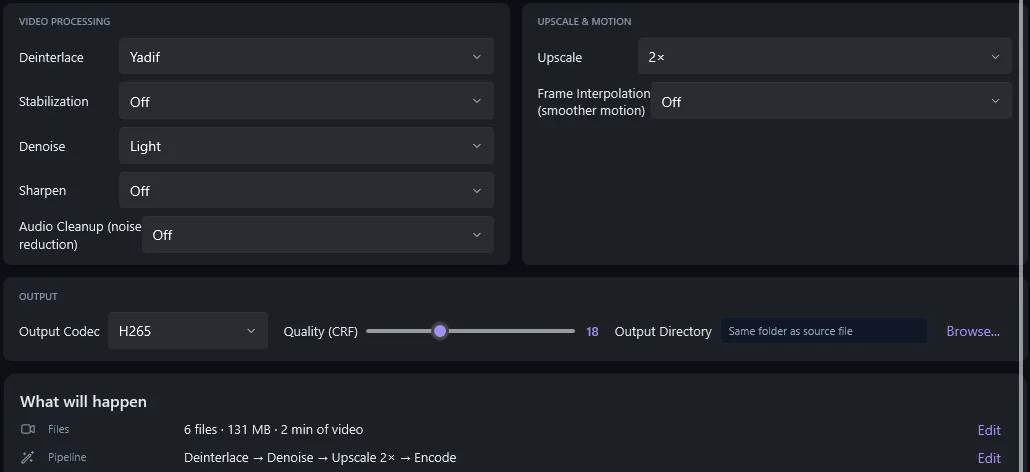
Why interlacing ruins an upscale
An interlaced frame holds two half-pictures (fields) taken 1/50 or 1/60 of a second apart, woven line by line. On anything that moves, the two fields disagree and edges turn into combs. An upscaler cannot tell a comb from real detail, so it makes the teeth bigger and sharper.
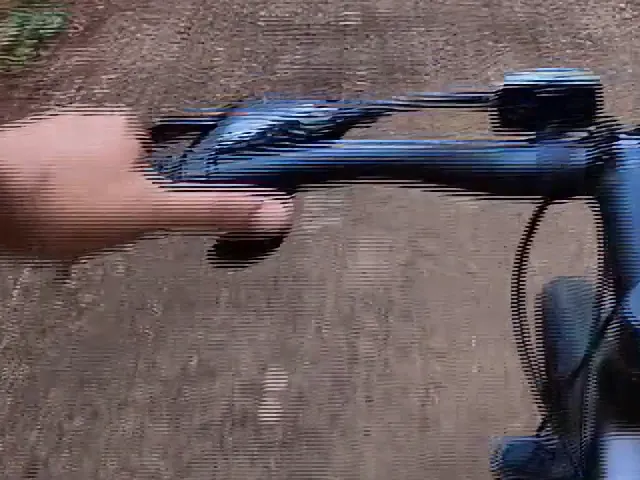 Upscaled, no deinterlace
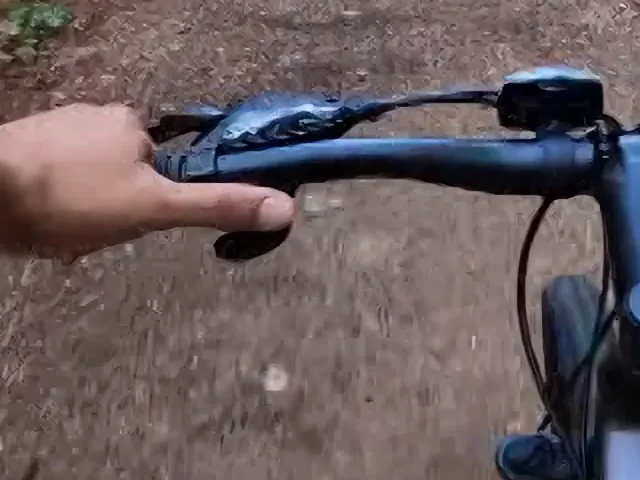 Yadif + denoise, then upscale
Settings in AI Video Enhancer Studio
- Click Add Videos or Add Folder and load the VOB or MPG files from the disc, or your capture files (AVI, DV, MP4).
- Click Auto-Analyze. For an interlaced DVD or tape file it selects the Tape Restoration preset, which sets Deinterlace to BWDIF 50/60p and Denoise to Medium. Any other preset you click sets Deinterlace to Yadif on interlaced files.
- BWDIF 50/60p makes a frame from every field: smooth motion at 50 or 59.94 frames per second. Pick Yadif instead to keep 25 or 29.97 frames per second and a smaller file.
- Set Upscale to 2× (the preset leaves it off). Keep Denoise on Medium for a tape; Light is enough for a clean DVD.
- Choose H.265 as Output Codec and click Start Enhancement.
Starting settings per source
| Source | Frame | Deinterlace | Denoise | Upscale 2× gives |
|---|---|---|---|---|
| DVD (NTSC) | 720×480, 29.97i | Yadif | Light | 1440×1080 |
| DVD (PAL) | 720×576, 25i | Yadif | Light | 1536×1152 |
| VHS or Hi8 capture | 720×480 / 720×576 | Yadif | Medium | 1440×1080 / 1536×1152 |
| DV / MiniDV | 720×480 / 720×576 | Yadif | Off or Light | 1440×1080 / 1536×1152 |
2× gives 1,080 lines from a 4:3 NTSC DVD and 1,152 from PAL, the 1080p class; your TV or player scales the last step. 3× only makes sense for a 4K screen and takes longer.
The 4:3 shape is kept
Most camcorder DVDs and all VHS tapes are 4:3, and DVD pixels are not square: a 720×480 frame is shown as 4:3. The upscaled file keeps that shape with square pixels: a 4:3 NTSC DVD comes out at 1440×1080, a 4:3 PAL DVD at 1536×1152 and a 16:9 PAL DVD at 2048×1152. A round wheel stays round in every player. This works when the file says it is 4:3 or 16:9, as DVD and DV files do.
What the filters can and cannot fix
Fixes
- Comb lines from interlacing (Deinterlace)
- Grain, tape noise and MPEG blocks (Denoise)
- Soft edges, at twice the lines (NVIDIA VSR)
- Shaky handheld shots (Stabilization)
Stays as it is
- Faces or text only a few pixels wide
- Tracking lines, dropouts and tape creases
- Colour smearing next to edges
- Detail that was never on the tape
Related guides
- VHS tape restoration
- Deinterlacing
- Video Deinterlacing: The End of Combing Artifacts
- How to Restore Old Home Movies with AI
- Save RTX VSR to a file
Questions
Can I upscale a DVD straight to 4K?
You can pick 3× or 4×, but a DVD holds 480 or 576 lines. 2× already shows what the disc contains; more only makes a bigger file that your TV would have scaled anyway.
Do I need an NVIDIA graphics card?
For the AI upscale, yes: NVIDIA RTX Video Super Resolution needs an RTX card, 20-series or newer. Without one the app upscales with its standard upscaler, a sharp resize that is not AI. Deinterlace and Denoise run on any Windows 10 or 11 PC.
Yadif or Yadif (Bob)?
Yadif keeps the frame rate (25 or 29.97 frames per second). Yadif (Bob) makes a frame from every field (50 or 59.94): smoother motion, bigger file. Both remove the combs.
Can the app copy the DVD?
No. Copy the VOB files from an unprotected disc, or use your ripping tool, then load them. Tapes need a capture device first.
Try it on your own discs and tapes
Load a VOB or a capture file, set Deinterlace, Denoise and Upscale, and compare the result with the original.
Download Free TrialFree trial, no time limit: 10-second clips (up to 30 seconds of each video a day) and 5 full videos at full resolution. AI upscaling needs an NVIDIA RTX card.