How to restore old home movies with AI: film reels, VHS and camcorder tapes
The short answer
Digitize the reel or tape first. Then run the file through up to five fixes, in this order: deinterlace (tapes only), denoise, stabilize, upscale and, if you want smoother motion, 60 fps. In AI Video Enhancer Studio you add the files, click the Old Video Restoration preset, change two or three settings for your source and click Start Enhancement. The app applies the fixes in the right order by itself.
Know what to expect. The cleanup removes noise, tape grain and the blocky compression pattern that cheap transfers add, so edges come out clean and the picture calms down. It does not invent detail the camera never recorded. A face that is six pixels wide in the source is still six pixels of information, only cleaner.
Which fixes for which source
| Setting in the app | Film scan (8mm, Super 8, 16mm) | VHS, VHS-C, Video8, Hi8 | Digital camcorder (MiniDV, early HD) |
|---|---|---|---|
| Deinterlace | Off. Film is shot as whole frames. | Yadif (Bob), unless the transfer is already deinterlaced. Auto-Analyze tells you. | Yadif (Bob) if the file is interlaced. MiniDV is, and many HD camcorders record 1080i. |
| Denoise | Medium or Strong, for grain and dust | Strong | Light or Medium |
| Stabilization | Light or Medium, for handheld shots and scan jitter | Medium for handheld shots, Off for tripod shots | Medium for handheld shots, Off for tripod shots |
| Upscale (NVIDIA RTX) | 2×, or 4× for small copies such as 320×240 | 2× | 2× for MiniDV. Off or Enhance for HD. |
| Frame Interpolation | Off to keep the film look, 60 fps for smooth motion | Off with Yadif (Bob): the video already plays at 50 or 60 fps | Off with Yadif (Bob). 60 fps for progressive 25 or 30 fps files. |
You choose which fixes to turn on. The app always applies them in the same order: Deinterlace, Stabilization, Denoise, Upscale, Frame Interpolation, Sharpen. A film reel that was copied to VHS or DVD counts as a tape.
Step by step in AI Video Enhancer Studio
- Open the app and click Enhance in the left menu.
- On Select Files, click Add Videos (or Add Folder for a whole collection of transfers), or drop the files on the window. Click Next: Configure.
- Click Auto-Analyze. It reads the first file and shows its resolution, codec and frame rate, and it tells you when the video is interlaced.
- Under Quick Presets, click Old Video Restoration.
- Under Video Processing, adjust for your source (see the table): for a tape, set Deinterlace to Yadif (Bob). For a tripod shot, set Stabilization to Off.
- Under Upscale & Motion, keep Upscale at 2×, or pick 4× for a very small file. Set Frame Interpolation (smoother motion) to 60 fps only if you want smoother motion.
- Under Output, choose the Output Directory and click Start Enhancement.
Before a two-hour tape, test on a short piece: on Select Files, right-click the file, choose Set Trim... and keep 10 seconds. Run the whole tape once that result looks right.
What the Old Video Restoration preset sets
In version 2026.7.12, clicking the preset sets these values. Everything stays editable afterwards.
| Setting | Value |
|---|---|
| Stabilization | Medium |
| Denoise | Strong |
| Upscale | 2× |
| Audio Cleanup (noise reduction) | Strong |
| Output Codec | H.265 |
| Quality (CRF) | 18 |
| Deinterlace, Sharpen, Frame Interpolation | Off |
The preset does not deinterlace, even after Auto-Analyze has reported an interlaced file. For VHS and camcorder tapes, step 5 is the one you must not skip.
Why the order matters
Deinterlace before anything else
Tape stores each frame as two half-pictures (fields) recorded a split second apart. Until they are rebuilt into whole frames, every moving edge shows comb lines, and a denoiser or upscaler treats those lines as detail and keeps them. Yadif (Bob) turns every field into a frame, so a PAL tape plays at 50 fps and an NTSC tape at 60 fps, the way it looked on a TV. Yadif keeps 25 or 30 fps and gives a smaller file. Film scans are already whole frames: leave Deinterlace Off.
Denoise before upscaling
Upscaling enlarges everything in the frame, noise included. The app removes grain and tape noise while it reads the frames, before the upscaler sees them, so the upscaler works on a clean picture.
Stabilization zooms in a little
The stabilizer moves each frame to cancel the shake and zooms in slightly so the moving edges stay out of view. Use it on handheld shots. On a tripod shot it has nothing to fix and still changes the framing.
What it does to a real 1938 home movie
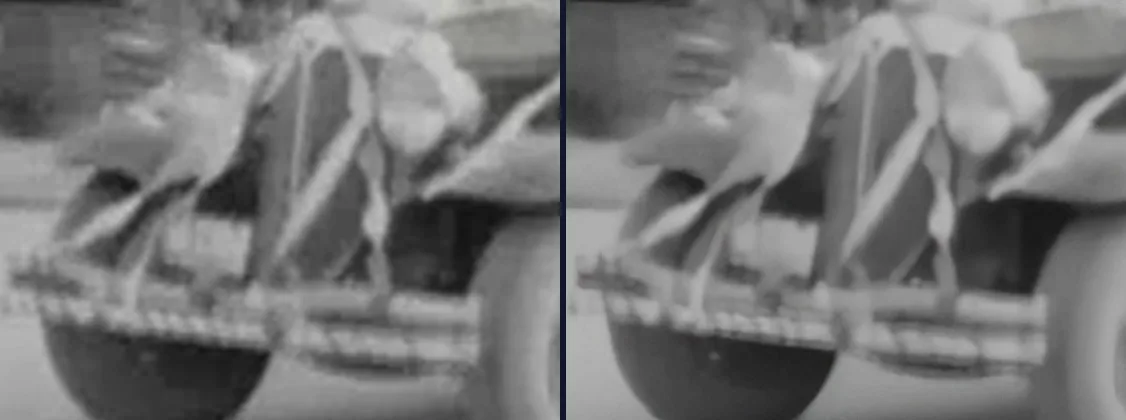
The footage is Ivan Besse's 1938 home movie (Prelinger Archives, public domain), in the 320×240 copy that archive.org serves. The block pattern on the grille and the ribbons is gone and the edges are clean. The finer detail is only what the film already held.
Measured on one PC (NVIDIA RTX 3080, AMD Ryzen 9 3900X, AI Video Enhancer Studio 2026.7.12) with an 8-second clip of 240 frames: Denoise Strong + Upscale 4× + Sharpen Light produced a 1280×960 file in 6.0 seconds. Adding 60 fps doubled the frames to 480 and took 25.5 seconds. The Old Video Restoration preset (2×) produced 640×480 in 5.3 seconds.
Stabilization is Off in this comparison. The preset's stabilizer moves the frame, so the two sides would no longer line up, and a parade filmed from one spot has little shake to remove.
More on each fix
- Video Deinterlacing: The End of Combing Artifacts
- How to Denoise GoPro and Drone Footage
- How to Stabilize Shaky Video
- How to Upscale Old Videos to 4K with AI
- AI Frame Interpolation: Choppy Video to Smooth 60fps
- VHS tape restoration
Questions
Can AI bring back detail that was never recorded?
No. It removes noise, grain and compression blocks and cleans up edges, which makes old footage far easier to watch on a large screen. Detail the camera did not capture stays missing: a face that is a few pixels wide in the source stays soft.
Do I need an NVIDIA graphics card?
For Upscale, yes. It uses NVIDIA RTX Video Super Resolution and needs an NVIDIA RTX card (20-series or newer). On other graphics cards the Upscale box is greyed out and the app names your card. Deinterlace, Denoise, Stabilization and Frame Interpolation still work.
Should I convert home movies to 60 fps?
That is a matter of taste. 8mm and Super 8 home movies were filmed at 16 to 18 frames per second. At 60 fps the motion is smooth, but the film look is gone, so try it on a short clip first. For tapes, Yadif (Bob) already gives you 50 or 60 fps from the real fields, so you do not need Frame Interpolation.
What does the free trial include?
The first 5 files come out without a watermark and at full resolution. After that, output carries a watermark and is capped at 720p until you buy a licence. That is enough to restore a few clips of your own footage and judge the result.
Try it on your own home movies
Download the trial, add one digitized tape or reel and run the Old Video Restoration preset with the changes above. The first 5 files come out without a watermark.
Download Free TrialFree trial with watermark. No account or credit card required.